1Create a bucket from local files
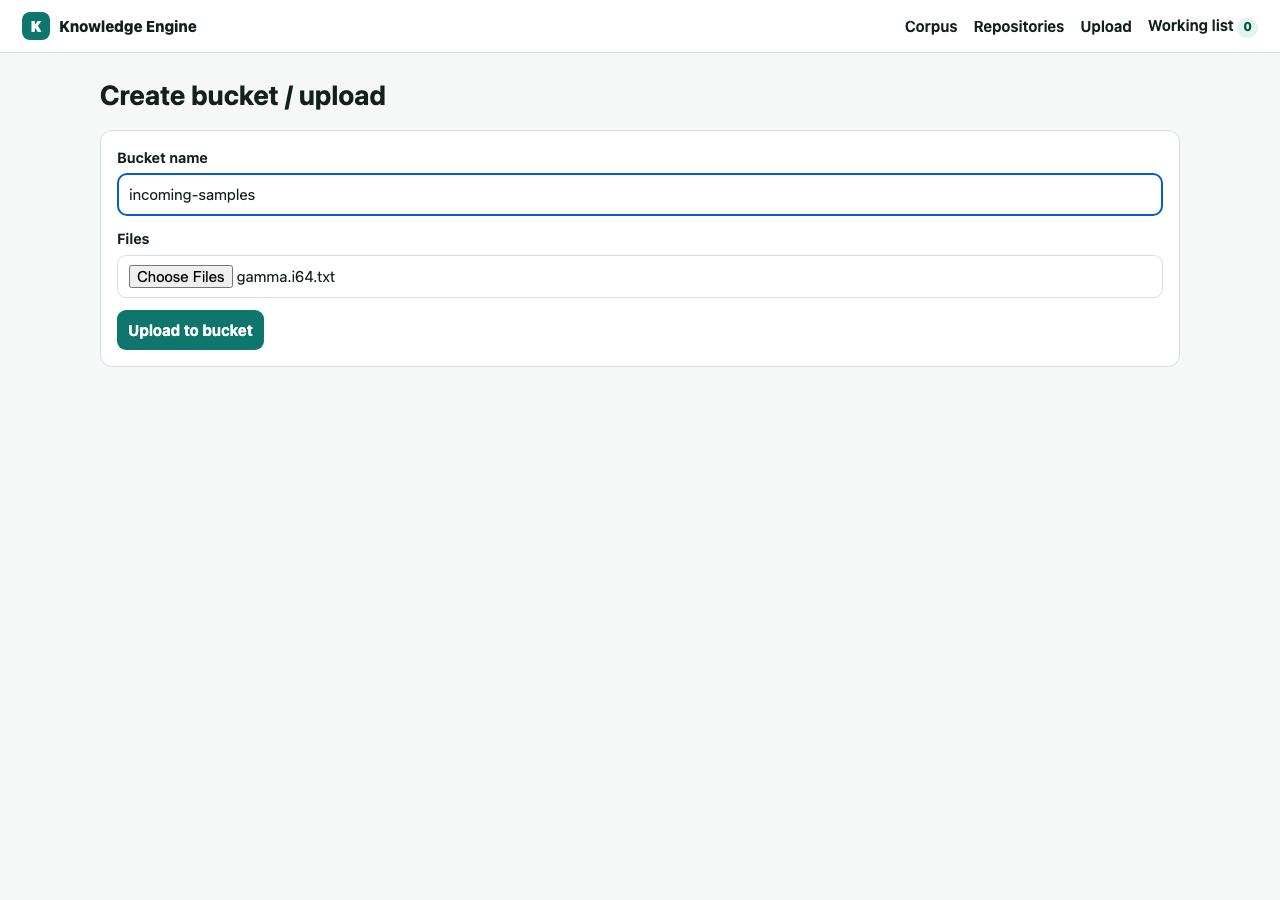
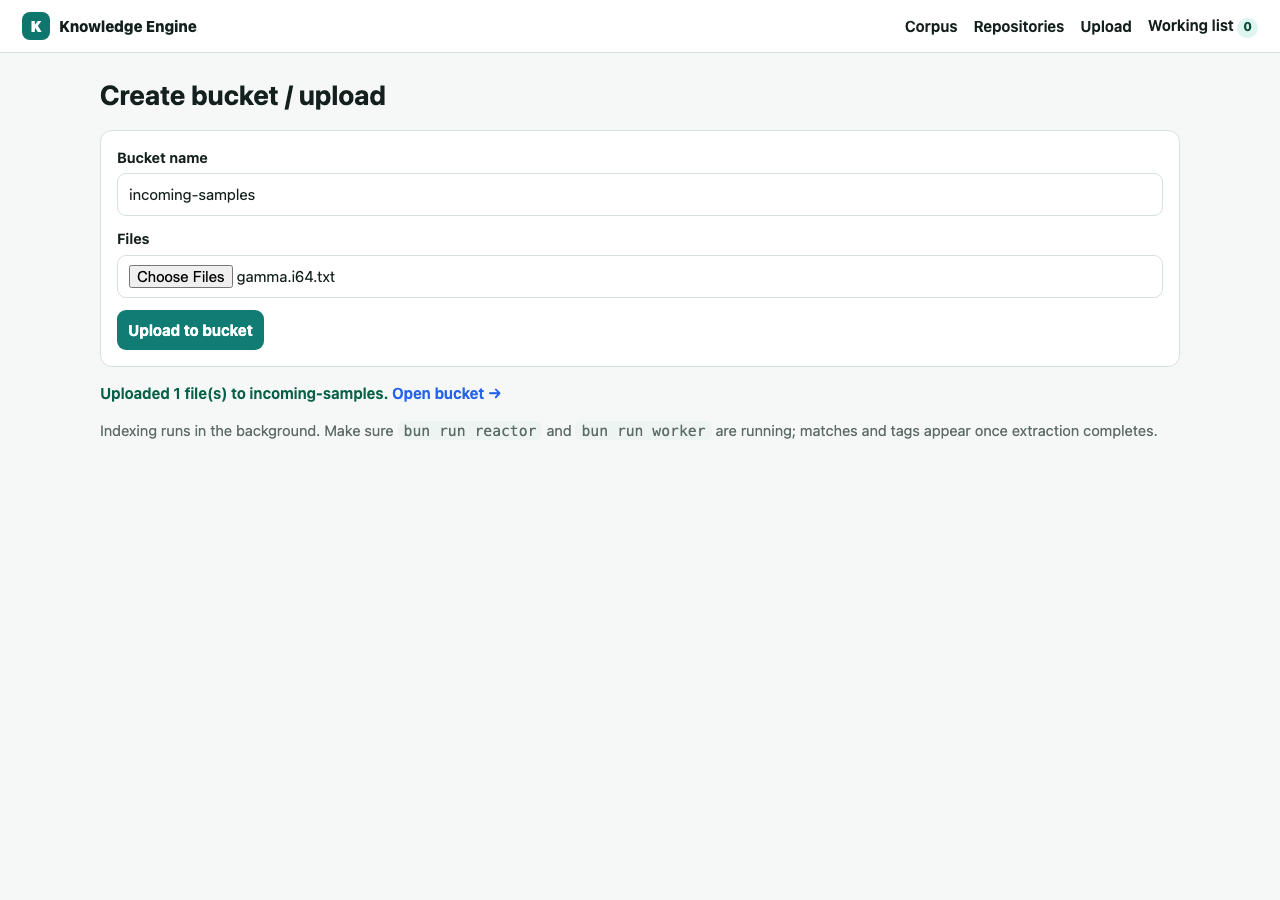
A bucket is a queryable collection. Go to Upload, name the bucket, choose files. KE
stores each file content-addressed by SHA-256 and adds a location at bucket/filename.
2Browse the corpus
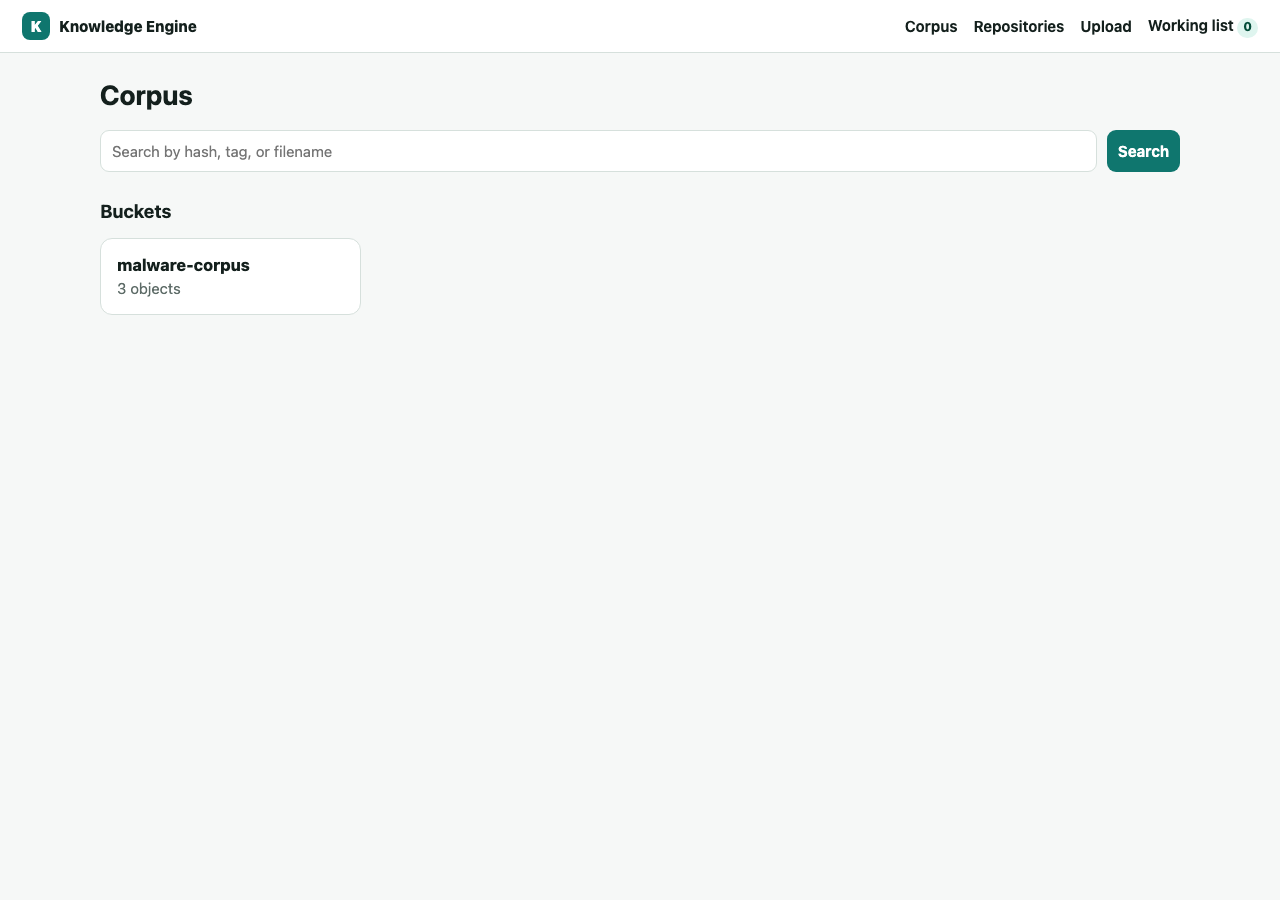
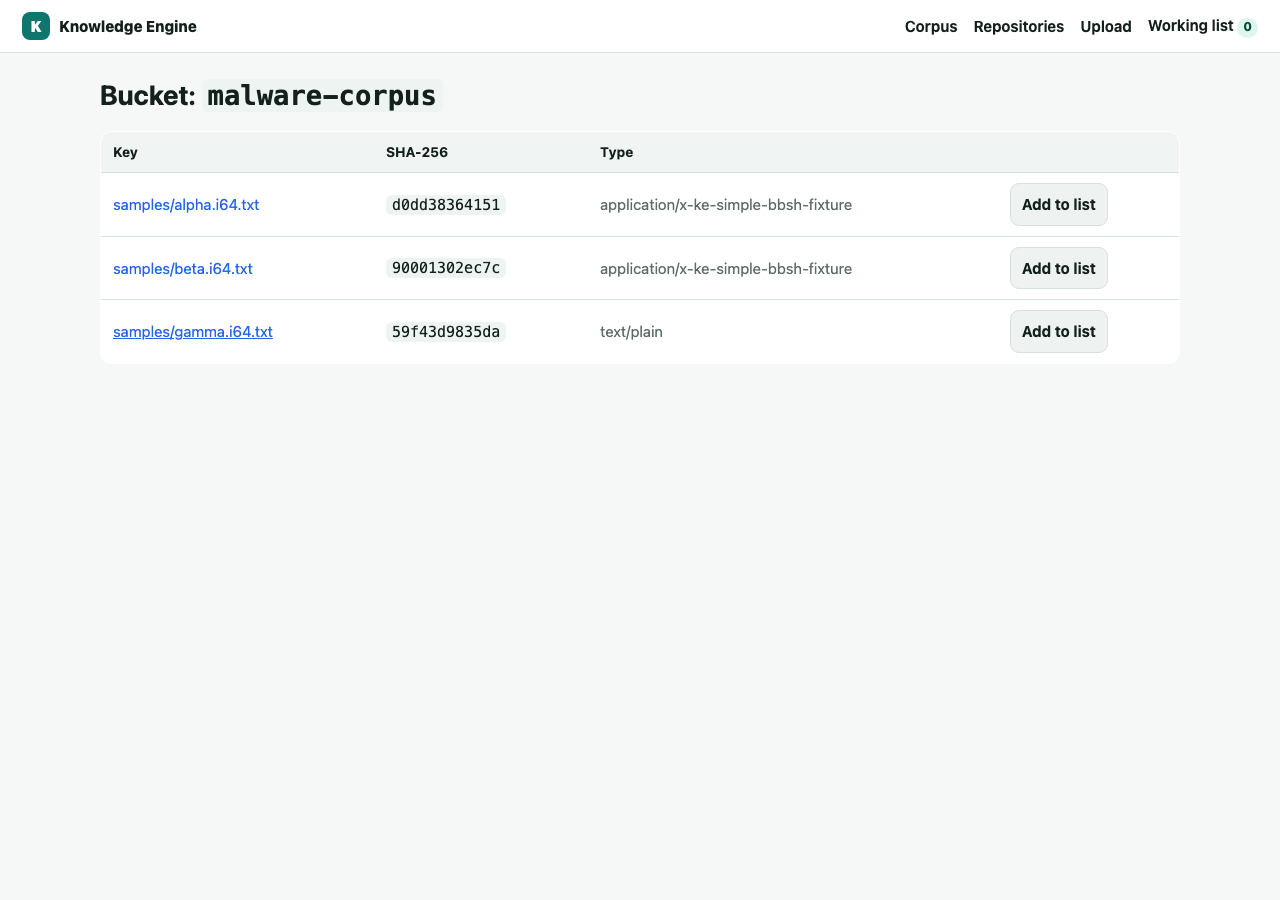
The home page lists buckets with object counts. Click a bucket to see its objects; each row links to the object's detail page and can be added to a working list.
3Search and inspect
Search spans the corpus by hash prefix, tag, or filename. An object's detail page shows its SHA-256, every live location, tags, aliases, relations, annotations, and a direct byte download.
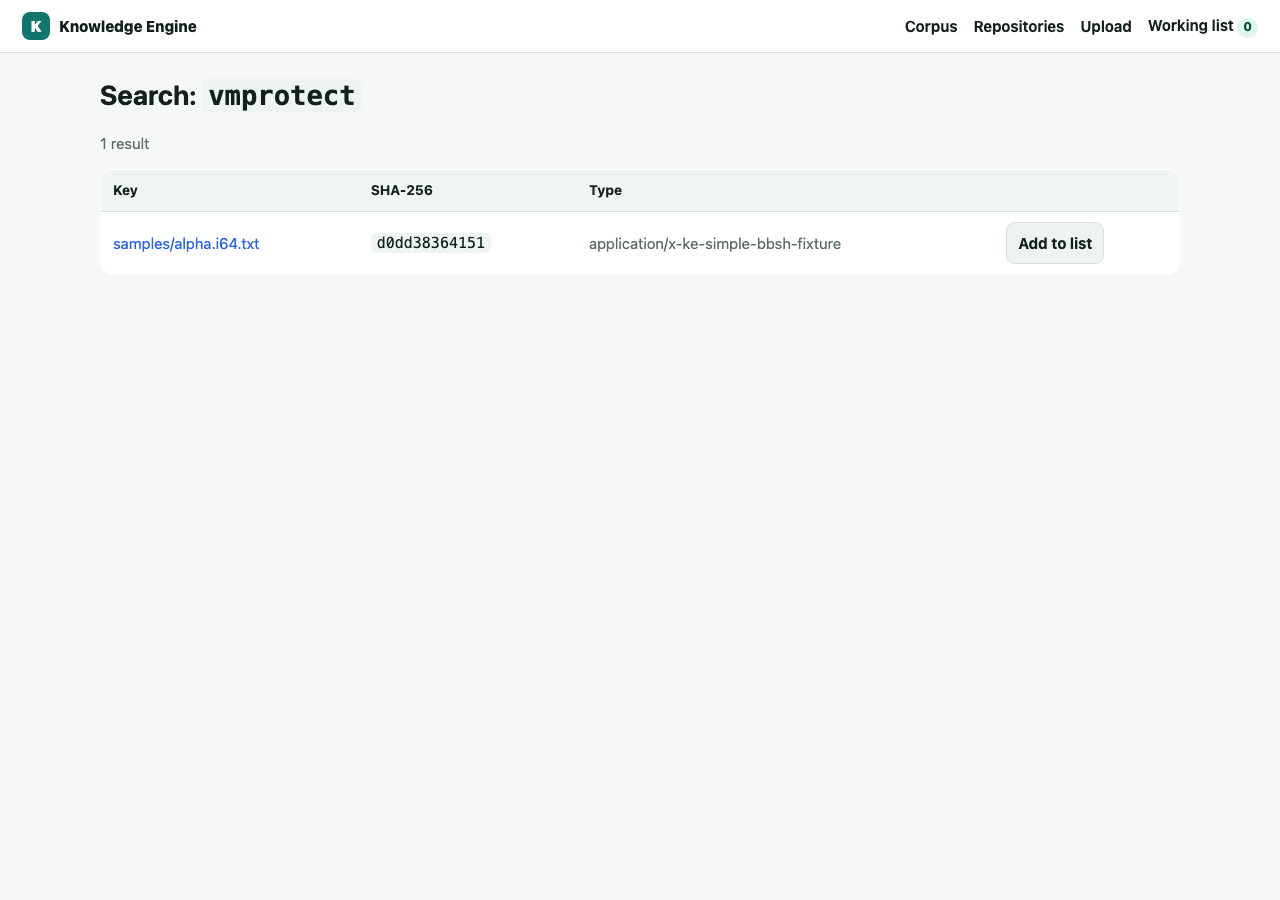
vmprotect.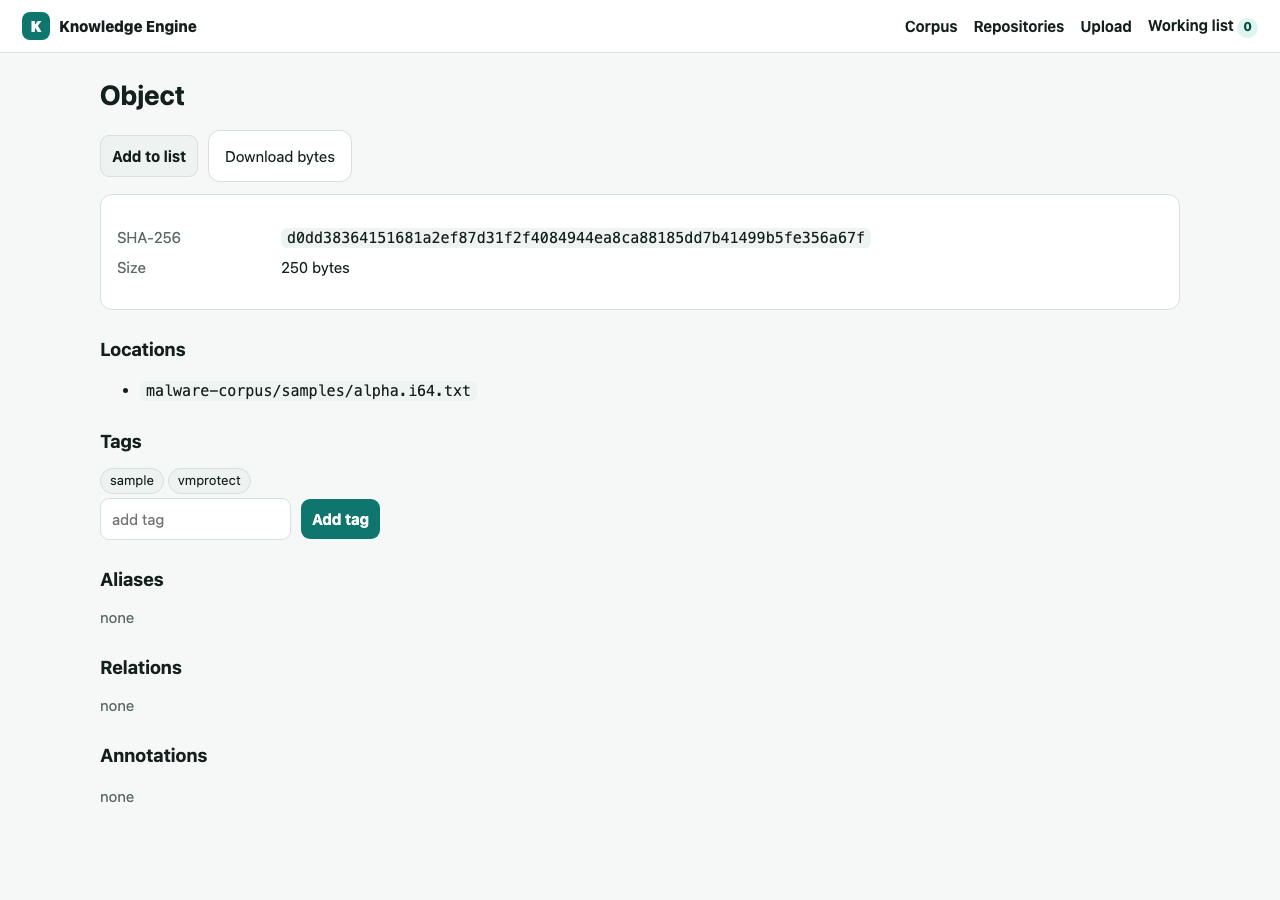
4Analyze an object: similarity, metadata, status
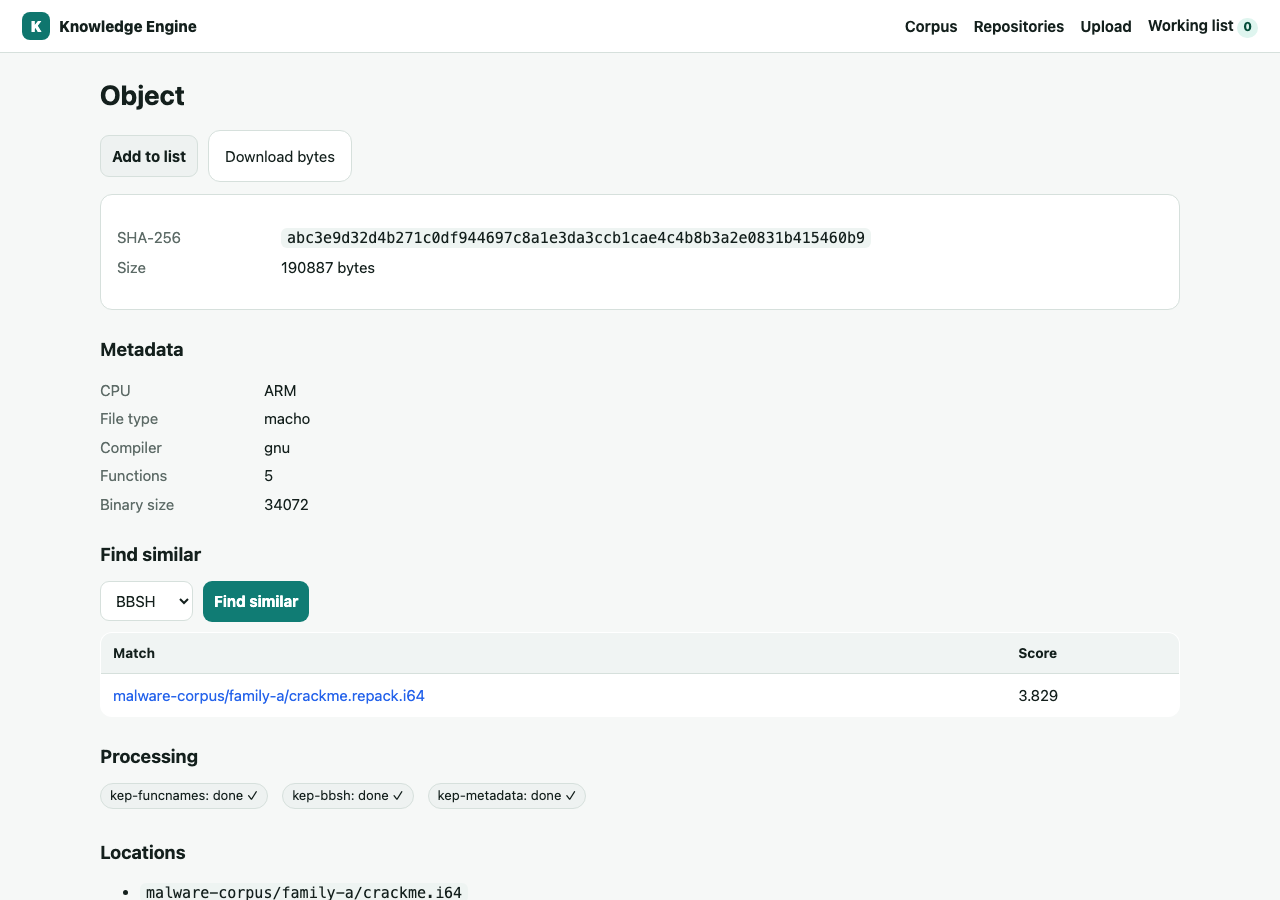
The object page is also where analysis happens. It shows the extracted metadata (cpu, file type, compiler, function count), a processing status for each plugin (done ✓ / running / failed ✗ with the error), and a Find similar panel — pick an algorithm (BBSH, FLAKE, FLIRT, Strings) and get ranked matches across the whole corpus. Each match links straight to that object.
5Host a repo, and 6 build one from a selection
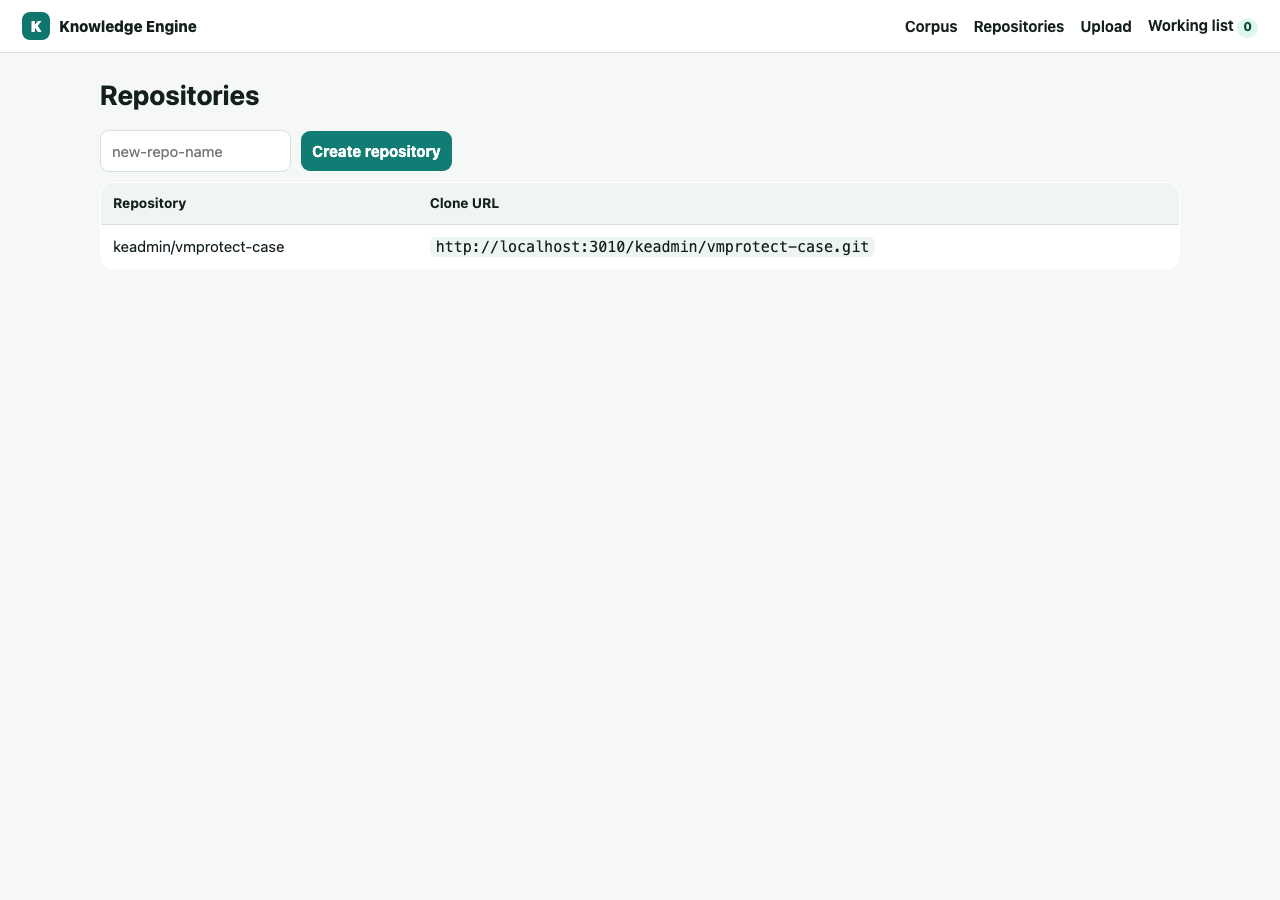
From Repositories, create a KE-hosted repo and copy its clone URL. Or, while browsing,
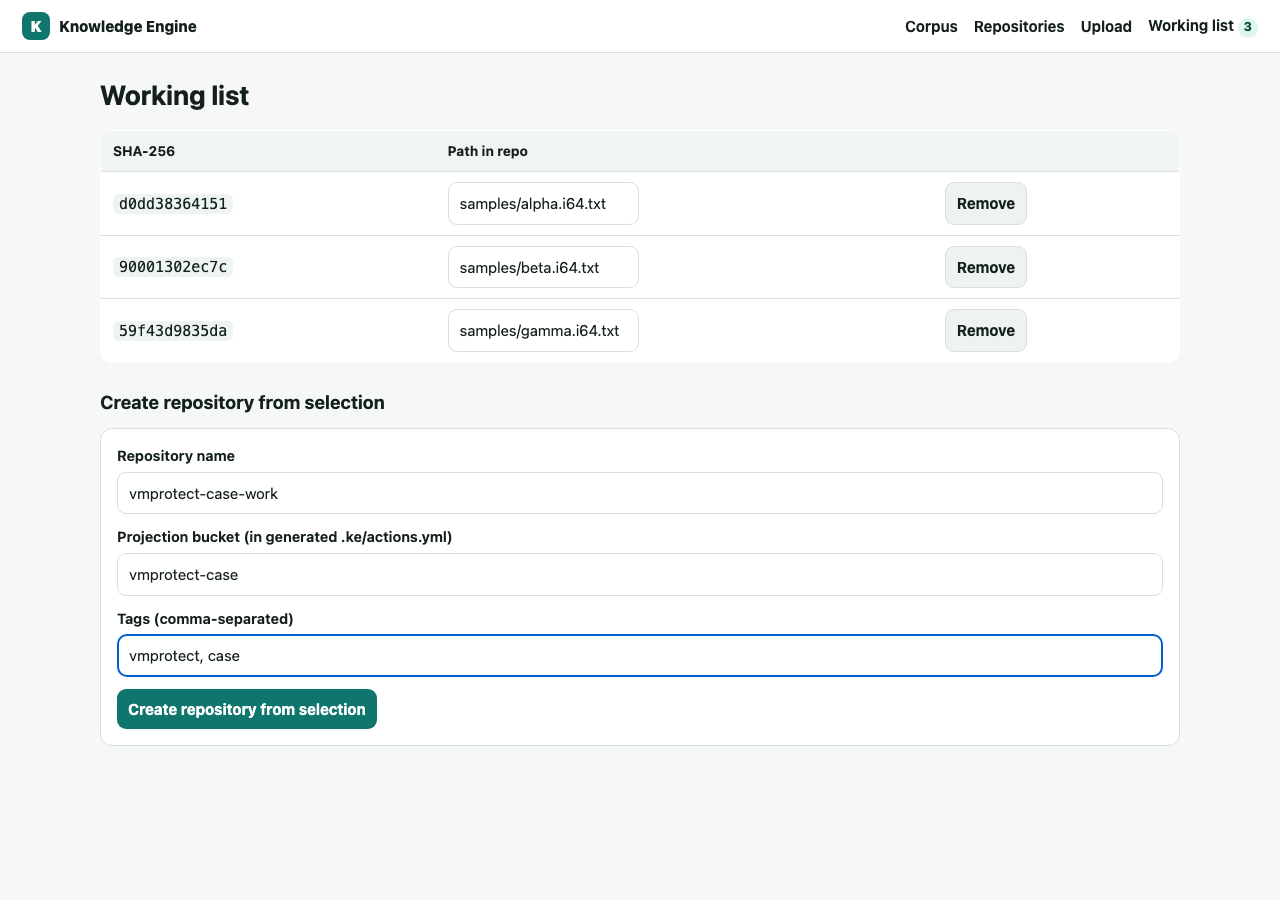
add objects to the Working list and create a repository pre-populated with them plus a
generated .ke/actions.yml — so later pushes project straight back into the corpus.